
Send qualified LinkedIn leads to HubSpot, Google Sheets or Slack with Zapier
Send qualified LinkedIn leads from traxy to HubSpot, Google Sheets or Slack with a Zapier webhook: setup, field mapping, routes and duplicate handling.
To send qualified LinkedIn leads from traxy into almost any app, create a Zap that starts with a Webhooks by Zapier "Catch Hook" trigger, paste that URL into traxy under Integrations > Zapier, send a test payload, then add a route that connects a saved lead view to the endpoint. Each new qualified lead in that view arrives in your Zap as a signed event with lead, company, contact and engagement fields, and you map those fields into HubSpot, Google Sheets, Slack or any other app Zapier supports. Routes apply to leads entering the view after you save them, so send existing leads manually.
Last checked: November 9, 2026, against traxy's Zapier and routes docs and Zapier's webhook trigger guide.
How do I send LinkedIn leads to HubSpot, Google Sheets or Slack with Zapier?
Paste a Zapier Catch Hook URL into traxy, add a route from a saved lead view, then map the fields in your Zap. Whether Zapier is the best path depends on the job. For HubSpot or Google Sheets, use Zapier or a raw webhook. For plain Slack alerts, traxy's native Slack integration is simpler. For self-hosting or complex branching, n8n fits better. traxy fits when you also want the leads: it finds high intent leads from LinkedIn activity at a 50%+ ICP match and runs LinkedIn and email outreach from your own connected accounts after you approve the campaign.
What you need before you start
A traxy workspace with qualified leads and permission to manage integrations
A Zapier account that can use Webhooks by Zapier
A saved lead view in traxy for the audience you want to send (filter and save audiences)
Access to the destination app: HubSpot, Google Sheets, Slack or another
Step 1: Create the Zap and copy the webhook URL
In Zapier, create a Zap with Webhooks by Zapier as the trigger.
Choose Catch Hook for parsed JSON fields. Choose Catch Raw Hook if you plan to verify traxy's signature, because Zapier's docs say the raw trigger includes headers and the unparsed body (up to 2MB). Zapier's guide still says this as of November 2026.
Copy the webhook URL Zapier shows.
Turn the Zap on before relying on it. Zapier's docs note that when a Zap is off or deleted, incoming webhook requests eventually get a 404. As of November 2026, Zapier's guide says the 404 can take up to several hours to start.
Step 2: Connect Zapier in traxy
Open Integrations > Zapier.
Enter a connection name and paste the HTTPS webhook URL.
Add an authentication header only if your receiver requires one, then save.
Open Settings on the connection to review triggers and Payload & help.
Select Send test payload, then check that Zapier received it.
Zapier uses the test request to show you the available fields. traxy's docs describe first-delivery and repeat-engagement events as having different purposes, so check which event you are mapping.
Step 3: Add a route
A connection alone sends nothing. A route connects one audience to one destination (routes).
Open the connection's Routes tab and select Add route.
Choose All leads or a saved view.
Select the webhook endpoint.
Choose Auto or Manual delivery. For Auto, review the ICP match threshold.
Save.
The route threshold controls what reaches this destination. It does not change qualification or lead capacity. If you select a personal view, saving the route shares it with the workspace.
Step 4: Map fields into your destination
Use the test event to map fields. The exact field names come from the payload sample in Payload & help; use those rather than guessing. Common mappings:
HubSpot
Action: find or create a contact, keyed on work email when present
Map name, title, company and LinkedIn profile URL
Write the signal summary and ICP match into a note or custom property so the rep sees why the lead arrived
If you prefer HubSpot's own route for engagement data, compare with how to route LinkedIn engagement signals into HubSpot and best LinkedIn tools for HubSpot
Google Sheets
Action: create a spreadsheet row
One column per field you need: name, title, company, profile URL, signal, ICP match, date
Add a column for the event type so repeat-engagement events don't look like new leads
Slack
Action: send a channel message
Include who, why (the signal), fit (ICP match) and a link back to the lead
traxy also has a native Slack integration with its own routes and repeat-engagement settings. Use Zapier for Slack only when you need custom logic in between. For client channels, see send a client's LinkedIn leads to their sales team in Slack.
Step 5: Send existing leads
Automatic routes apply to leads entering the audience from that point onward. Saving or editing a route does not send every lead already in the view. To backfill, select leads in Leads, open Send to, choose the route and confirm. A queued result means the request was accepted for delivery. Check the result to tell queued, delivered and failed apart.
Verify the signature (optional, recommended)
Each request includes X-Traxy-Signature and X-Traxy-Timestamp headers. Payload & help in traxy explains how to verify them with the signing secret. In Zapier, this means using Catch Raw Hook and a code step that follows those instructions. If you rotate the secret, update the Zap before relying on later events.
Make the Zap safe for repeats
traxy's docs say lead delivery can retry temporary failures, so the same event can arrive more than once. Build for that:
Use find-or-create actions instead of plain create actions where your destination supports them
Key on a stable identifier from the payload, such as the lead ID or profile URL
In Sheets, check for an existing row before adding one
Troubleshooting
Symptom | Likely cause | What to check |
|---|---|---|
Test payload never arrives | Zap off, wrong URL | Zap status and the URL saved in traxy |
Test works, real leads don't | No route, or route paused | Routes tab and route state |
Existing leads missing | Routes don't backfill | Send them manually |
Fewer leads than expected | Route ICP threshold above lead scores | Route threshold and the saved view's filters |
Route paused itself | Repeated failures | Fix the Zap or destination, then resume |
Duplicate rows or contacts | Retries | Find-or-create logic |
If leads appear in traxy but not in Zapier, discovery worked. The problem is in the route, connection or receiver (no new qualified leads).
Start with a first batch of 50 competitor engagers in Google Sheets
The fastest way to turn competitor audience engagement into a first outbound list you can check is to track a few competitors in traxy, save a view of the leads you want, route it to a Zap that writes Google Sheets rows, and send the first 50 by hand. A batch that size is small enough to review row by row before you automate anything.
Track the competitors. Under Targeting > People, track each competitor's profile and pick the competitor relationship. Add a company page under Targeting > Companies, or a single post under Targeting > Posts (tracking docs). Only people at a 50%+ ICP match become leads, each with the post or comment behind them.
Save a view. In Leads, add filters for the people, companies or signals you need and save it as a view (saved views).
Connect the Zap and add a route. Follow Steps 1 to 3 above: a Catch Hook trigger, the Zapier connection in traxy, then a route from your saved view. Choose Manual delivery for the first batch, or Auto with an ICP match threshold for the leads that enter the view later.
Map the Sheet. On the Zapier side, add a Google Sheets "create spreadsheet row" action, as in Step 4, with columns for name, title, company, profile URL, signal, ICP match, date and event type.
Send the first 50. Routes don't backfill, so select 50 leads in Leads, open Send to and choose the route (routes).
Review, then reach out. Mark each row "would contact" or "would skip". When the batch holds up, the same shared view can feed a traxy campaign that researches each lead and runs LinkedIn and email outreach from your own connected accounts. traxy runs your entire LinkedIn GTM end to end, so that outreach runs on autopilot once you test on sample leads and approve the campaign, or you approve every message (LinkedIn outbound with traxy).
For how to choose the competitors and what to measure, see LinkedIn competitor analysis.
Zapier, n8n, Clay or a raw webhook?
traxy's webhook-style connections are Webhook, Clay, n8n and Zapier, and they share the same signed event format and route model. Choose by where the rest of your workflow lives:
Zapier: the widest app catalog, fastest to set up
n8n: self-hosting and more complex branching. See n8n LinkedIn lead workflow
Webhook: your own service receives events directly (webhook docs)
Teams that work from an AI client can also connect over MCP and queue a selected lead to a webhook-style destination with traxy_deliver_lead_to_webhook_destination (MCP tools). Queuing is not proof the receiver accepted it.
FAQ
Does traxy have a native HubSpot integration?
traxy's integrations list does not include a native HubSpot connector as of November 9, 2026. Zapier or a webhook are the documented ways to send leads there.
Do Zapier deliveries use lead capacity?
No. A person uses lead capacity when first delivered as a qualified lead in your workspace. Routing, export and enrichment don't count them again (qualification).
Will contact details be in the payload?
The payload can include contact fields that are saved on the lead. Contact lookup is a separate step. Email lookup is included with eligible plan access. Phone lookup requires the phone add-on or an entitlement that includes it. Auto-Enrich settings control lookups for newly qualified leads (contact details).
Can I send different audiences to different Zaps?
Yes. Use separate routes, each with its own saved view and endpoint.
How do I get competitor engagers into Google Sheets?
Track the competitors in traxy, save a view of the leads you want, and route it to a Zap with a Google Sheets "create spreadsheet row" action. Routes only send leads that enter the view after you save them, so send your first batch from Leads with Send to.
Next step
Save one view in traxy, such as Warm leads above your preferred ICP match, connect it to a Zap that writes to a Google Sheet, and check a week of rows before you wire it into your CRM.
Keep reading
All LinkedIn Lead Generation guides
LinkedIn Lead Generation (2026): What It Is, Strategy, Tips and Tools for B2B
What LinkedIn lead generation is, a 7-step B2B strategy, the 5 main tactics, tips, tools and metrics, plus every LinkedIn lead generation guide we publish.
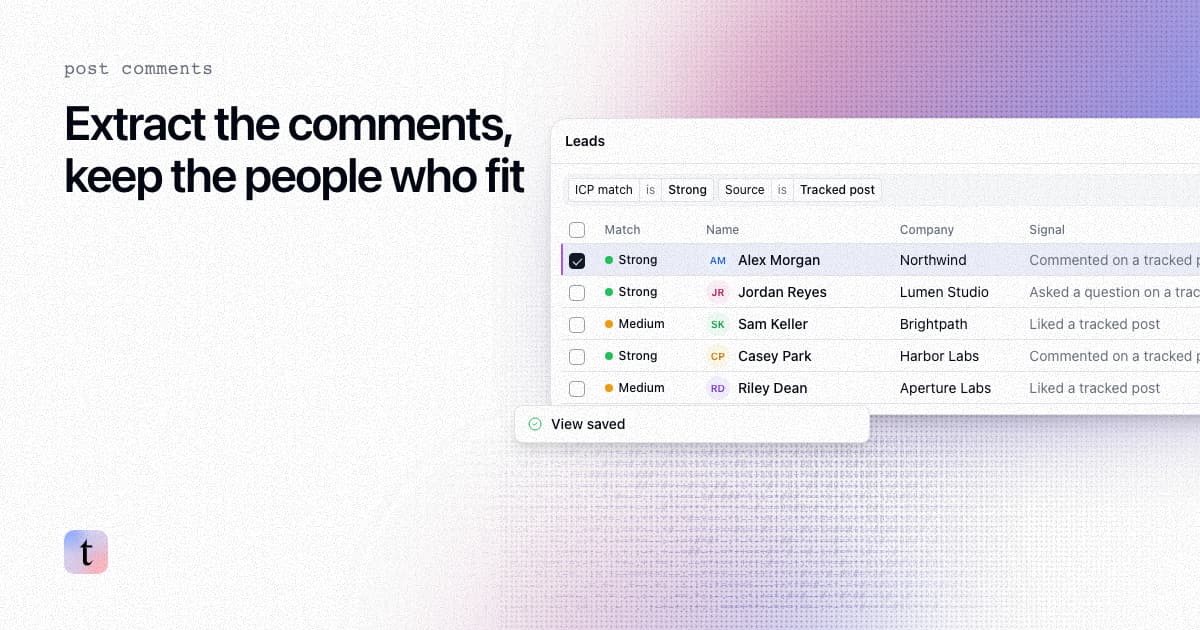
How to extract comments from a LinkedIn post, and keep only the commenters who fit your ICP
Four ways to extract comments from a LinkedIn post, what each returns and risks, and how to keep only the commenters who fit your ICP.
How to find leads from the people who engage with a LinkedIn company page
Most company page engagers are employees, job seekers and peers. How to find the ones who fit your ICP, with the post that brought each one in.