
n8n LinkedIn lead workflow: send qualified LinkedIn leads from traxy into n8n with signed events
Send qualified LinkedIn leads from traxy into an n8n Webhook node with signed events: route a saved view, verify, dedupe and branch on the event type.
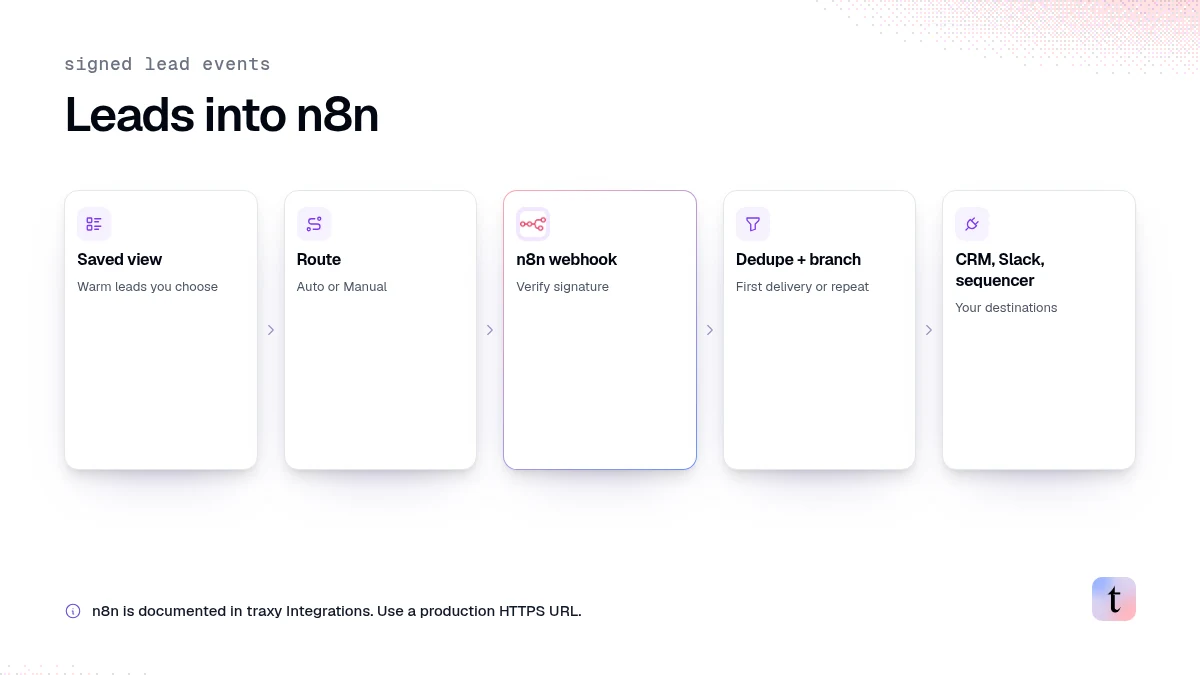
To send LinkedIn leads into n8n, connect traxy's n8n integration to an n8n Webhook node, then create a route from a saved lead view to that endpoint. traxy sends signed events when a qualified lead enters the view, and separate events when a known lead engages again. In n8n, verify the signature, deduplicate, branch on the event type, and pass the lead to your CRM, Slack or sequencer. You skip the scraping step because each lead arrives already checked against your ICP, with its engagement context attached.
Last checked: November 6, 2026.
GTM engineers have been posting their own n8n lead stacks this week. One r/gtmengineering thread is titled "I built my own GTM engine with n8n + Clay + Neon + HubSpot." Many of these builds start with a scraper and spend most of their nodes cleaning and qualifying what it returns. This guide starts the flow later, with a lead that already passed fit.
What you need
A traxy workspace with lead criteria and signals set (lead criteria, Signals)
A saved lead view for the audience you want in n8n (saved views)
An n8n workflow with a Webhook trigger that is active, so it accepts requests outside a temporary test session
Permission in traxy to manage integrations and routes
Step 1. Create the receiver in n8n
Add a Webhook node as the trigger, method POST.
Copy the production URL. It must be HTTPS.
If you protect the webhook with header authentication, note the header name and value.
Activate the workflow.
traxy's docs point out that the receiver must accept requests outside a temporary test session, so use the production URL rather than the test URL (n8n integration).
Step 2. Connect n8n in traxy
Open Integrations > n8n.
Enter a connection name and the HTTPS endpoint.
Add the authentication header if your receiver requires one, and save.
Open Settings to review triggers and Payload & help.
Choose Send test payload and check that the execution appears in n8n.
A test sends one immediate request. Use it to build your field mapping before any real leads arrive.
Step 3. Route an audience to the endpoint
A route connects one audience to one destination (routes).
Open the n8n integration's Routes tab and choose Add route.
Pick All leads or a saved view. Use a view, such as "Warm leads, founders, North America," so n8n receives only the people you want to act on.
Choose Auto or Manual delivery. For Auto, review the ICP match threshold for this route.
Save.
Two details matter here:
No backfill. Automatic routes apply to leads entering the view from that point onward. To send leads already in the view, select them in Leads, open Send to and choose the route.
The route threshold is separate from qualification. It controls delivery to n8n. It does not change which people qualify, which still requires an ICP match of at least 50% (how qualification works).
If you use a personal view in a route, saving the route shares that view with the workspace.
Step 4. Verify the signature
Each request includes X-Traxy-Signature and X-Traxy-Timestamp headers. Follow Payload & help in the app to verify signatures with the signing secret. In n8n this usually means a Code node right after the Webhook node that recomputes the signature and stops the execution if it does not match.
If you rotate the signing secret in traxy, update the n8n workflow first, or later events will fail verification.
Step 5. Deduplicate
Lead delivery can retry temporary failures, so the same event may arrive more than once. The docs say to make downstream processing safe for repeated events.
A simple pattern:
Read the lead identifier and event metadata from the payload, using the sample in Payload & help to find the right fields.
Look it up in a store you control, such as an n8n data table, a Postgres table or your CRM.
If you have already processed that event, stop. If not, record it and continue.
Step 6. Branch on the event type
traxy sends different events for different purposes. A first-delivery event means a person entered the routed audience as a qualified lead. A repeat-engagement event means a lead you already have engaged again.
Use an n8n Switch node on the event type:
Event | Typical action |
|---|---|
First delivery | Create or update the contact in your CRM, assign an owner, post a Slack alert, add to a sequence in your sending tool |
Repeat engagement | Add a note or activity to the existing CRM record, alert the owner, raise the lead's priority |
Map lead, company, contact and engagement fields from the payload samples in the app. Keep the engagement context, such as the post and its topic, so whoever writes the first message can see why this person is on the list.
Step 7. Handle failures
Check both sides: the delivery result in traxy and the execution in n8n.
A route can pause after repeated failures. Fix the URL, authentication or workflow first, then resume the route.
Disconnecting the integration stops future delivery. It does not delete records already received in n8n or downstream.
Example workflows
CRM sync with context. Webhook → verify → dedupe → Switch. First delivery creates a HubSpot or Salesforce contact with a note containing the post topic and signal label. Repeat engagement adds an activity to the existing record.
Owner alerts. Webhook → verify → dedupe → look up the account owner → send a Slack DM with the lead, the signal and a link back to traxy. traxy also has a native Slack integration if you only need alerts.
Sequencer handoff. Webhook → verify → dedupe → filter on signal label → add to a campaign in your email tool, with the topic in a custom field. If you prefer to keep outreach in traxy, its own LinkedIn and email sequences run from the same saved view, and you approve the launch (review and launch).
Enrichment step. If a lead arrives without the contact details you need, request an email or phone lookup in traxy first, or add your own enrichment node. A lookup in traxy does not count the person as a new lead (contact details).
Create the destination from Claude
If you work in Claude or Codex, the traxy MCP connection includes tools to create a webhook-style destination, including n8n, enable or disable it, and queue one selected lead for delivery. Queuing is not proof that the receiver accepted the event, so check n8n (MCP tools).
Why start the flow from traxy instead of a scraper
Scraper-first n8n flow | traxy-first n8n flow | |
|---|---|---|
Input | Raw profiles or engagers | Qualified leads from a saved view |
Fit check | Built in n8n with your own logic | Done before delivery, ICP match of at least 50% |
Context | Whatever the scraper returns | Signal label and engagement context per lead |
Repeat activity | You detect it | Sent as a repeat-engagement event |
For the bigger picture of where this sits in outbound, see signal-based outbound on autopilot.
FAQ
Can n8n get LinkedIn leads without scraping?
Yes. traxy finds and qualifies the leads from LinkedIn engagement and sends them to an n8n Webhook node as signed events.
Do existing leads get sent when I save a route?
No. Automatic routes apply to leads entering the view from then on. Send existing leads manually from Leads with Send to.
What is the difference between n8n, Webhook, Clay and Zapier in traxy?
All four send qualified lead events to another workflow. Pick the one your team already uses. The setup steps are the same pattern: endpoint, test payload, route (integrations).
How do I stop delivery?
Pause the route from its menu, or delete it to stop future routing. Leads already sent stay in the receiving system.
Next step
Save one view of leads you would act on today in traxy, point a route at an n8n Webhook node, and send a test payload. Build the mapping from that sample, then turn on Auto delivery.
Keep reading
All LinkedIn Lead Generation guides
LinkedIn Lead Generation (2026): What It Is, Strategy, Tips and Tools for B2B
What LinkedIn lead generation is, a 7-step B2B strategy, the 5 main tactics, tips, tools and metrics, plus every LinkedIn lead generation guide we publish.
Best LinkedIn tools for HubSpot (2026): logging vs sequencing vs triggering, and where engagement-led discovery fits
Best LinkedIn tools for HubSpot by job: logging, sequencing tasks, workflow triggering and engagement-led discovery, and how leads get into HubSpot via routes.
Claude MCP servers for sales teams (2026): what each one reads and does, and how to connect traxy
Claude MCP servers for sales by job: lead finding, contact data, CRM and LinkedIn. What each reads and changes, and how to connect traxy to Claude over OAuth.