
How to send a client's LinkedIn leads to their sales team in Slack
Connect Slack in the client's traxy workspace, save a shared view, route it to the client's channel, send a test and name one owner for every alert.
To send a client's LinkedIn leads to their sales team in Slack, connect Slack in the client's traxy workspace, save a shared view of the leads the client should see, and add a route from that view to the client's channel. Pick automatic or manual delivery, send a test, and name one person on the client's side who owns every alert. Leads already in the view are sent by hand, because a new route only covers leads that arrive after you save it.
This guide is for the account manager at a LinkedIn content agency who sets the channel up, and for the client's head of sales who decides what happens when an alert lands. Every step below happens inside traxy, and each one links to the traxy docs page it comes from.
Why send a client's leads to Slack instead of waiting for the monthly report?
A person who fits the client's ICP engaged with the founder's post this morning. If that only shows up in next month's report, the sales team hears about it weeks later.
A Slack channel shortens that gap. The client's rep sees the person, their role and company, and the post they engaged with, in a tool the team already opens every day. The client also sees the content working without waiting for a slide deck.
The monthly report still matters. Slack shows people one at a time. The report shows which posts and which executives bring in fit people over a month. Run both. Our guide to how LinkedIn content agencies use traxy covers the report.
What do you need before you start?
A traxy workspace for the client, with lead criteria and signals that describe the client's buyer (lead criteria).
The client's founder and executives followed as LinkedIn profiles, so their posts bring in leads (track people, posts and companies).
Access to the client's Slack, or someone on the client's side who can approve the traxy app.
A channel the client agrees to, for example #linkedin-leads.
One named owner on the client's side who reads the channel and decides who follows up.
How do you set up the client's lead channel in traxy?
Step 1: Connect Slack
In the client's workspace, open Integrations > Slack and complete the Slack authorization (Slack). In Settings, check the connected Slack workspace and the default channel. If the channel is private and does not appear in the picker, invite the traxy app to it first.
Step 2: Save the audience the client should see
Open Leads and filter to the people the client's sales team should hear about. A good starting point is leads with a Warm or Related signal from the client's own people, so leads from competitors or industry voices you follow for research stay out of the client's channel.
Choose Save as new view, name it something the client will recognize, such as "Client: founder post leads", and share it (filter and save audiences). A saved view keeps the filters. The people in it change as new leads arrive.
Example prompt in trax:
"Show me leads with a Warm or Related signal that came from {founder}'s or {executive}'s posts in the last 30 days."
Review the result, then save the filters as a shared view.
Step 3: Add a route to the client's channel
Open Routes and choose Add route (route leads to other tools).
Choose the saved view from step 2.
Choose the client's Slack channel.
Choose Auto or Manual delivery. For Auto, review the ICP match threshold.
Review and save.
The route threshold controls what goes to this channel. It does not change who qualifies in the workspace.
Step 4: Turn on the notifications the client wants
In the Slack Settings, review the available triggers (Slack):
Repeat engagement posts new activity from a lead who already qualified. This is useful when someone engages with a second or third post.
Lead-reply notifications matter only if the agency also runs outreach from traxy.
Daily summary gives the channel one recap a day.
Step 5: Test it with the client
Use Test trigger and look at the message in the channel together with the client's sales owner. A successful test confirms the test request. Watch the first few real alerts as well.
Step 6: Send the leads that are already there
Saving a route does not send the people who were already in the view. In Leads, select the ones the client should see, open Send to and choose the route. Check the channel name before you confirm.
Which settings fit a client channel?
Setting | What it does | Suggested start |
|---|---|---|
Saved view | Decides which leads can reach the channel | Warm and Related leads from the client's own people |
Delivery mode | Auto posts new leads as they enter the view. Manual waits for you to send them | Manual for the first two weeks, then Auto |
ICP match threshold (Auto) | Minimum match for automatic posting | Start higher than your qualification minimum, lower it if the channel is too quiet |
Repeat engagement | Posts new activity from leads who already qualified | On |
Daily summary | One recap a day | On if the channel is busy, off if it is quiet |
Starting in Manual lets the agency check the first leads before the client's team sees them. Once the leads look right, switch to Auto.
Who owns each alert?
This decides whether the channel works. Agree on it before you turn anything on.
The client's sales owner reads the channel daily and picks who follows up.
The person whose post it was, often the founder, is usually the best sender, because the lead saw their name.
The agency tunes the criteria and the view, and checks once a week that alerts are being answered.
One simple rule you can suggest: react to each alert in Slack with one emoji for "contacting", one for "not now" and one for "not a fit." The agency can then see at a glance whether anyone acts on the leads.
If a lead is wrong, mark it Bad fit in traxy with a reason. Feedback records the judgment so you can tighten the criteria. It does not rewrite the lead's score by itself (how qualification works).
What should an alert lead to?
An alert is a reason to look, not a reason to pitch. Before anyone sends a message, they should open the lead and check the signal and its source (use signals in outreach).
A comment or question on the post gives the clearest opening. Respond to the problem they raised.
A like on a post gives a topic, not an endorsement. Mention the topic, not the like.
A fit person with no strong signal gets a plain, role-based introduction.
What if alerts stop arriving?
Check these in order (Slack, routes):
The Slack connection is still active.
The route is not paused. Routes can pause after repeated failures.
The traxy app still has access to the channel.
The saved view still has the filters you expect.
New qualified leads are arriving at all. If not, check the profiles you follow and the workspace's capacity (no new qualified leads).
Fix the cause before you resume a paused route.
FAQ
Can each client have its own Slack channel?
Yes. Each client has its own workspace, and each route sends one view to one channel. Use separate routes when different views go to different channels.
Can I send only leads from one specific post?
A view saved while a post's lead scope is selected keeps that post scope (saved views). Use that view in a route if the client wants alerts for one campaign post.
Does the route send every lead in the view right away?
No. Automatic routes cover leads that enter the view after you save the route. Send existing leads with Send to.
Does deleting the route remove the alerts?
Deleting a route stops future alerts. Messages already posted stay in Slack.
Do Slack alerts use extra capacity?
No. A person uses capacity when first delivered as a qualified lead in the workspace. Routing that lead does not count it again.
Related reading
Running LinkedIn content for clients? See how agencies use traxy.
Keep reading
All LinkedIn for Agencies guides
LinkedIn for Agencies: The Complete Guide (2026)
LinkedIn for agencies: how to run multi-client lead generation, content operations, automation, and signal-based prospecting at scale in 2026.
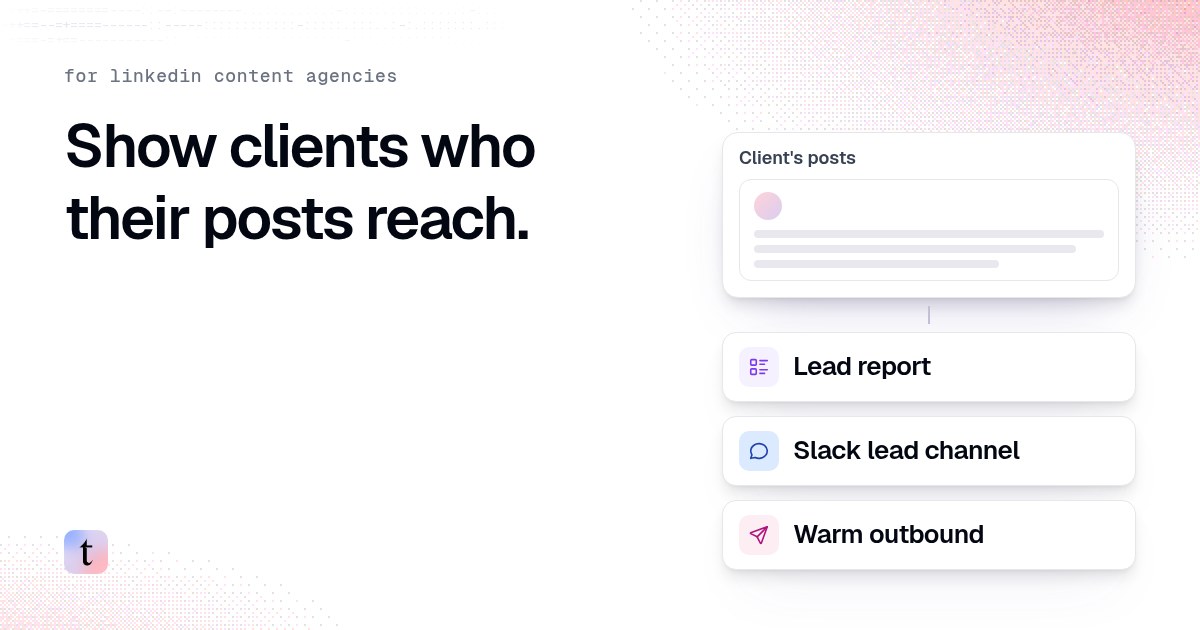
How LinkedIn content agencies use traxy: client lead reports, Slack alerts and warm outbound
Three things a LinkedIn content agency can add to a retainer: a monthly lead report, a Slack channel for the client's sales team, and warm outbound.
Someone liked your client's case study post. Now what?
A like alone rarely means intent. Reach out when the person fits the ICP and the post is close to a buying decision, and mention the topic, not the like.