
How to find decision makers who are active on LinkedIn, including the ones who never post
Find decision makers active on LinkedIn: define the buyer, use Sales Navigator's Posted on LinkedIn filter, add commenters and likers, then reach them.
TL;DR: Decision makers who are active on LinkedIn are people who own the decision for what you sell and have recently posted, commented on or liked posts about the problem you solve. Sales Navigator's "Posted on LinkedIn" filter finds the ones who posted in the last 30 days; traxy also finds the ones who only comment and like, keeps those with a 50%+ ICP match and runs LinkedIn and email outreach to them from your own connected accounts after you approve.
How do I find decision makers who are active on LinkedIn?
Look for two things at once: people who own the decision for what you sell (by role, department, seniority and company fit), and people who have done something recent on LinkedIn about the problem you solve. Sales Navigator's "Posted on LinkedIn" filter finds the ones who wrote a post in the last 30 days; to also catch the decision makers who only comment and like, track the posts they engage with or search their activity directly, keep the ones who fit, and reach them with the post or comment as your reason to write.
traxy runs your entire LinkedIn GTM end to end, from finding high intent leads from social intent to enriching and researching each one, to running relevant, personalized LinkedIn and email outreach to them on autopilot. On autopilot means you test a campaign on sample leads with nothing sent and approve it once, then it runs on its own from your own connected LinkedIn accounts and mailboxes. If you would rather check every message, approve each one in a review queue instead. This guide covers both halves: finding active decision makers, and the outreach to them.
Here is the workflow, step by step:
Define who owns the decision. Write down the roles, departments, seniority and company fit of the person who signs off on what you sell.
Find the ones who post. In Sales Navigator, combine role and company filters with "Posted on LinkedIn". Without Sales Navigator, search titles and check each person's recent activity by hand.
Add the ones who comment and like. Many active buyers never write a post. Find them on the posts they engage with: competitors', creators', company pages', a single post, or a search of LinkedIn likes, posts and comments.
Keep only the people who fit. Check each person against your criteria and keep the post or comment that shows they are active, with its date.
Reach them over LinkedIn and email. Open with what they said, test on a few leads before anything goes out, and decide whether you approve once or approve every message.
Last checked: November 13, 2026, against LinkedIn's Sales Navigator filter definitions (checked November 2026) and traxy's docs for lead criteria, Tracking, signals and review and launch.
Step 1: How do you define who owns the decision?
Define the decision maker by four things together: the role, the department, the seniority and the kind of company. A senior title alone doesn't make someone the buyer. A VP at a 5,000-person company and a founder at a 20-person company can own the same decision, and a "Head of" title at one company can mean a team of one.
Write it down before you search, because every later step filters on it:
Role and department. The function that feels the problem and holds the budget. If you sell recruiting software, that might be the founder at a small company and the head of talent at a larger one. If you sell outbound services, the head of sales, with RevOps as a second contact.
Seniority. The level that can say yes. For many B2B offers that is director and above, or owner and founder at small companies.
Company fit. Size, industry, location and anything else that rules a company in or out, such as revenue or funding stage.
Who to leave out. Peers who sell what you sell, recruiters, students, job seekers and existing customers. Active LinkedIn users include a lot of people who are not buyers, so exclusions matter as much as the target.
In traxy, this lives in Targeting > Lead criteria. People criteria cover roles, departments, seniority and locations, company criteria cover size, industry, revenue, funding and keywords, and exclusions rule out unwanted titles, locations or company characteristics (lead criteria). If you start from scratch, enter your company website and traxy drafts your lead criteria and signals, then shows a lead preview; you fix anything that's off. You can also add existing customers' domains to the Blocklist so they stay out of future lead discovery. For help writing the profile itself, use our ideal customer profile template.
Step 2: What does Sales Navigator's "Posted on LinkedIn" filter find?
It finds people who created a post recently. LinkedIn's own definition, under Recent updates in the lead filters, is: "Filter by leads who have created a post on LinkedIn in the last 30 days" (Sales Navigator lead and account search filter definitions, checked November 2026).
To find active decision makers with it, combine it with the role and company filters from the same page:
Set the role. Use Function ("Filter leads by their job function category"), Seniority level and Current job title for the decision maker you wrote down in step 1.
Set the company. Use Company headcount, Industry and Geography, or an account list if you already have named target companies.
Turn on "Posted on LinkedIn". The results narrow to people who created a post in the last 30 days.
Read the posts. A post about the problem you solve is a reason to write. A post celebrating a work anniversary is activity, not relevance, so open each one before you save the lead.
What it misses. The definition covers creating a post. LinkedIn's filter page doesn't mention comments, likes or reactions anywhere, so a decision maker who comments on three posts a week about your problem but never writes one of their own won't show up under this filter. The window is also fixed at 30 days, and the filter tells you someone posted, not what they posted about. The same page lists Changed jobs ("within the last 90 days"), which is a useful second filter for new decision makers at accounts you care about.
Without Sales Navigator, you can do a slower version by hand: search LinkedIn for the titles and companies from step 1, open each profile's activity, and note who posted or commented recently on something relevant. You can also search for posts about the problem you solve and read the author and the commenters for people in the right roles. That works for a short list. It gets slow past a few dozen people, and it doesn't keep watching after you stop. For more on Sales Navigator's filters, see Sales Navigator filters for B2B lead generation.
Step 3: How do you find decision makers who comment and like but never post?
Find them where they engage: on the posts they react to and comment on. A decision maker who never posts still leaves a trail when they comment on a competitor's post, like a creator's take on the problem you solve, or reply on an industry company page. Collect the people on those posts, then check who fits.
traxy gives you several ways to do that. All of them end in the same place: people checked against your lead criteria, each with the activity behind them.
Track people. In Targeting > People, track a LinkedIn profile and pick its relationship: competitor, teammate, influencer, investor or custom. traxy watches that profile's posts and qualifies the people who engage. Competitors and the creators your buyers follow are usually the best places to start, because the people engaging there already care about the topic.
Track yourself and your team. Track your own LinkedIn URL and engagement on your own posts turns into qualified leads. The same works for your founder's or sales team's profiles.
Paste a single post URL. Under Targeting > Posts, track any LinkedIn post (yours, a competitor's, an influencer's) and traxy returns the engagers who fit your ICP. This is the fastest route when you have already found one post where your buyers gathered. You can also paste the post into trax, the traxy agent, and ask for its audience.
Track company pages. Add a company by domain or LinkedIn company page, and traxy reads its page posts for engagers who fit your ICP. Tracking a company finds the people who engage with its posts; it doesn't add every employee as a lead.
Search social intent. Social intent search lets you describe the person and the need in plain English ("heads of sales at software companies talking about SDR ramp time") and search across 71M+ scanned LinkedIn likes, posts and comments. Each person comes with the post or comment behind them. You can run it in traxy or from Claude or ChatGPT through the traxy MCP.
Describe the signal. In Targeting > Signals, your Signal Brief tells traxy which buyer pains, topics, product mentions and triggers make a lead relevant. Discovery runs look for new people who fit your criteria and signals, and you can ask trax to start one or to find posts on a topic to pull leads from.
There are no tracking limits on profiles, posts or company pages, so you can track every competitor and creator your buyers follow. If you also want the people who look at your profile, traxy's LinkedIn activity card under Targeting > Signals has a Profile views switch, and Leads > Filters lets you narrow to people who viewed a profile in the last 7, 30 or 90 days.
For a full walkthrough of the search side, see what social intent search is. For tracking competitors and creators, see how to track competitors' LinkedIn engagers.
Step 4: How do you keep only the active people who fit?
Check every active person against your decision-maker definition, and keep the evidence that shows they are active. Activity without fit gives you a list of busy LinkedIn users. Fit without activity gives you a cold list. You want both.
In traxy, every engager is scored against your lead criteria, and only people with a 50%+ ICP match become qualified leads. Each lead then shows:
The activity behind them. The post, comment, like or repost that put them on your list, with its source and date in the lead's Signals tab. Check the date before you use it in a message.
How strong the evidence is. Each lead is labeled Warm, Related, Activity or ICP match. Warm means a direct signal relevant to your offer; Activity means observed activity with a weaker connection; ICP match means fit with no recorded signal of the other types (signals).
The fit. The ICP match score on each lead, which you can filter by match band to narrow the list.
That covers the simple shortlist most people keep by hand: name, company, role, why they own the decision, latest activity and the topic. In traxy the role and company come from the profile, the fit comes from the ICP match, and the latest activity and topic come from the post or comment on the lead. Save the filtered list as a shared view (for example "Warm, VP and above, software, 100 to 1,000 people"); a saved view updates as leads change, and campaigns use shared views. Mark a lead Good fit or Bad fit with a reason when traxy gets one wrong, so your judgment is recorded on the lead. If the wrong kind of person keeps showing up, tighten the exclusions in Lead criteria; our guide to filtering engagers by title, company size, industry and location covers that in detail.
Step 5: How do you reach active decision makers once you have the list?
Start from what each person did. Someone who commented on a post about the problem you solve gets a message about that comment. Then run a short LinkedIn and email sequence, from your own accounts, that you have tested and approved.
In traxy the outreach runs in the same place as the lead finding (LinkedIn outbound with traxy):
Get contact details. Look up a verified work email (and a phone number for eligible leads) for the people you plan to contact, or turn on Auto-Enrich for newly qualified leads (it doesn't backfill old ones). A lookup can come back empty, so check the result.
Connect your sender accounts. Sending needs connected sender accounts. Under Settings > Sender accounts, connect the LinkedIn accounts and mailboxes you send from and set limits, active hours, ramp-up and email signatures.
Create a campaign. Under Outbound > Campaigns (or by asking trax), give the campaign your shared view as the audience, your offer and the research you need. You can run several campaigns at once on different signals, for example one for competitor engagers and one for people who commented on your own posts.
Add research on each lead, if you want it. Research is optional. A campaign can research each lead for the facts you ask for, such as whether the company is hiring for a role or recently raised, before any message is prepared. When a required fact isn't found, the lead stays in traxy and you can choose to skip it in the campaign.
Let traxy group and prepare. Leads are grouped by signal and each group gets its own message variant, personalized with the evidence. traxy prepares the LinkedIn and email steps in one sequence; waits can depend on events like a connection being accepted.
Test on sample leads. The campaign test runs the plan on sample leads so you can check the research and drafts. Nothing is sent.
Review the launch. Before launch you see who joins, who is skipped (held by another campaign or contacted before), the sender, the steps and the delivery mode.
Choose how messages go out. Approve the campaign once and let it send on its own, or approve every message in a review queue. Replies, unsubscribes and hard bounces stop the sequence, and replies land in one inbox per lead across LinkedIn and email, where you can pause a lead's sequence and take over.
You can also run every step from Claude, ChatGPT, Cursor, Codex or Grok through the traxy MCP: draft, test on sample leads, launch, manage sequences and senders, and reply in the inbox, with the AI asking for your yes before anything sends or launches. If your team already sends from another tool, you can route qualified leads to HeyReach, Clay or a webhook, or to your CRM through Zapier, n8n or a webhook, instead.
What should the first message say?
Say what they said, and ask one question about it. Don't claim they want to buy, and don't pretend you were watching their feed. Two examples, written to show the angle (not results):
To a VP of Sales who commented on a competitor's post about SDR ramp time: "You mentioned new reps take a full quarter to ramp. What has shortened it most on your team so far?"
To a founder who liked several posts about hiring a first sales lead: a factual, role-based note about the problem, since a like is weaker evidence than a comment: "I work with founders hiring their first sales lead. Is that on your list for this year?"
For more on matching the message to the evidence, see how to turn a LinkedIn signal into a message.
Sales Navigator, manual search or traxy: which fits when?
traxy is the vendor writing this, so here are the criteria we used: which activity each option can see (posts, comments, likes), whether it keeps finding new people over time, whether it checks fit, and whether it runs the outreach.
Option | Activity it sees | Fit check | Outreach | Fits best when |
|---|---|---|---|---|
Sales Navigator "Posted on LinkedIn" | People who created a post in the last 30 days (per LinkedIn's definition) | Your own filters: function, seniority, title, company | Separate step | You want to browse every decision maker at named accounts, use account lists, CRM and TeamLink filters, or also filter on job changes |
Manual search | Whatever you open and read by hand: posts, comments, likes | Your judgment | Separate step | You have a handful of target accounts and time to read each profile |
traxy | People who like, comment on or write posts about your problem, engagers on tracked profiles, posts and company pages, and social intent search across 71M+ scanned likes, posts and comments | 50%+ ICP match against your lead criteria, with the post or comment on each lead | LinkedIn and email sequences from your own connected accounts, after you approve | You want the commenters and likers too, a list that keeps growing, and the outreach in the same place |
Where Sales Navigator fits better. If you sell into a fixed list of named accounts and need to see every senior person there, whether or not they are active, Sales Navigator's account lists, persona, CRM and TeamLink filters are built for that. It also has filters traxy doesn't copy one for one, such as job changes in the last 90 days. Many teams use both: Sales Navigator to map accounts, traxy to find who at those accounts is engaging and to run the outreach. Our traxy vs Sales Navigator comparison goes through the differences.
Where manual search fits better. For five strategic accounts, reading each decision maker's activity yourself is often the best research you can do, and costs nothing but time.
Where none of these help. If your buyers rarely use LinkedIn at all, no filter will make them active. Check that first with our guide to testing whether your buyers are active on LinkedIn.
What are the limits of finding decision makers by activity?
Activity is not a decision. A comment shows a topic is on someone's mind. It is not proof of a project, a budget or a plan to buy, and an ICP match is a fit score, not a probability that someone will buy.
Silent buyers stay invisible. Plenty of decision makers read LinkedIn without posting, commenting or liking. Activity-based lists find the ones who engage; a missing signal doesn't prove someone has no interest.
Titles are not org charts. Neither Sales Navigator nor traxy verifies who reports to whom or who signs. Use the title, the research on each lead and your own conversations to decide.
LinkedIn activity is the native signal. traxy finds LinkedIn engagement natively. Signals outside LinkedIn, such as hiring, funding or job changes, come from research on each lead in a campaign, not a live event feed.
Old activity gets stale. Check the date on the post or comment before you mention it. A comment from last quarter is weaker than one from this week.
Results vary. This guide shows the workflow. It doesn't promise replies or meetings, and no LinkedIn outreach tool can promise zero restriction risk, so keep your sending limits sensible.
How is this guide different from our other decision-maker guides?
This page answers one question: how to find people who both own the decision and are active on LinkedIn, starting from scratch. Three related guides start from a different point:
How to find the decision maker at a company where someone engaged starts after someone has already engaged with you, and the engager isn't the buyer. It covers finding the right person at that company.
Are your buyers active on LinkedIn? is the check to run before this one: whether your market is on LinkedIn enough to make activity-based prospecting worth it.
How to find warm, high intent leads on LinkedIn covers warm leads in general, not only decision makers, and the warm outbound to them.
FAQ
Does Sales Navigator show who commented on or liked a post?
Not through the "Posted on LinkedIn" filter. LinkedIn defines it as leads who "have created a post on LinkedIn in the last 30 days", and its filter definitions page doesn't mention comments or likes (checked November 2026). To find commenters and likers, collect them from the posts themselves, by hand or with a tool that reads post engagement.
How far back does "Posted on LinkedIn" look?
30 days, according to LinkedIn's definition. Someone who posted 31 days ago won't match.
Is someone who likes a lot of posts a decision maker?
Not by itself. Activity tells you someone is engaged; your criteria tell you whether they own the decision. In traxy, only people with a 50%+ ICP match against your lead criteria become leads, and each one shows the post or comment behind it.
Can I find active decision makers at specific companies?
Yes. Track those companies' LinkedIn pages to collect the people who engage with their posts, or filter your leads by company. To see other people at a company where someone engaged, see finding the decision maker at an engaging company. Tracking a company doesn't add every employee as a lead.
Do I still need Sales Navigator if I use traxy?
It depends on how you sell. Sales Navigator is strong for mapping every senior person at named accounts and for its account, CRM and TeamLink filters. traxy finds people by what they like, comment on and post, checks fit and runs the LinkedIn and email outreach. Many teams use both.
Does traxy send the messages, or only find the people?
Both. traxy prepares personalized LinkedIn and email sequences and sends them from your own connected LinkedIn accounts and mailboxes, after you approve the campaign once or approve every message. Replies, unsubscribes and hard bounces stop the sequence. You can also send qualified leads to HeyReach, Clay or a webhook if your team sends elsewhere.
Can I do this from ChatGPT or Claude?
Yes. Connect the traxy MCP, search social intent in plain English, review your leads, then draft, test and launch a campaign from chat. The AI asks for your yes before anything sends or launches.
Is research on each lead required?
No. Research is optional per campaign. Use it when your message needs a fact the LinkedIn activity doesn't give you, such as whether the company is hiring for a role.
Related reading
Keep reading
All LinkedIn Lead Generation guides
LinkedIn Lead Generation (2026): What It Is, Strategy, Tips and Tools for B2B
What LinkedIn lead generation is, a 7-step B2B strategy, the 5 main tactics, tips, tools and metrics, plus every LinkedIn lead generation guide we publish.
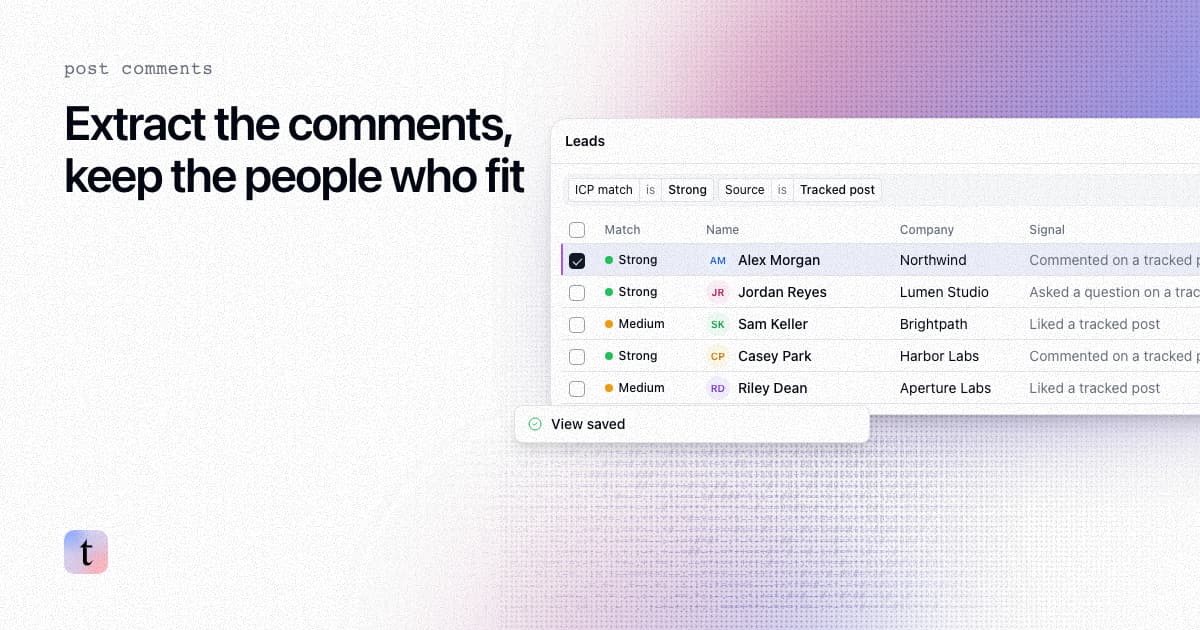
How to extract comments from a LinkedIn post, and keep only the commenters who fit your ICP
Four ways to extract comments from a LinkedIn post, what each returns and risks, and how to keep only the commenters who fit your ICP.

How to follow up with people who commented on your LinkedIn lead magnet post
Follow up with LinkedIn lead magnet commenters: sort who fits, send the resource, then one relevant second message over LinkedIn and email, with consent care.